Install Ubuntu Linux on an old laptop
From Windows 10 to Ubuntu Linux — a revolution in how you use your computer
Fast
Linux Ubuntu runs beautifully on older hardware, breathing new life into laptops that Windows 10 would choke on.
Free
Ubuntu is free, forever—it’s open-source; no subscriptions, no activation keys, no hidden fees. It respects your privacy: mining, no forced updates.
Secure
Security is baked in, with fewer viruses, fewer exploits, and a community that patches vulnerabilities fast.
Switching from Windows 10 to Ubuntu Linux is fairly easy. I’ve done it successfully several times. Just follow carefully the instructions below and breath new life into your old computer.
Ubuntu is free, forever—no subscriptions, no activation keys, no hidden fees. It respects your privacy: no telemetry, no data mining, no forced updates that hijack your screen. It runs beautifully on older hardware, breathing new life into laptops that Windows 10 would choke on.
Security is baked in, with fewer viruses, fewer exploits, and a community that patches vulnerabilities fast. And because it’s open-source, you’re not locked in—you own your system, not the other way around.
Plus, Ubuntu’s software center offers thousands of apps, from LibreOffice to GIMP, all free and ready to go. It’s not just lighter on your machine—it’s lighter on your conscience, your wallet, and your time. In short: Ubuntu gives you back control—without compromise.
Here’s a clear, step-by-step guide to installing Ubuntu Linux on an old laptop — perfect for giving new life to older hardware.
This guide includes downloading Ubuntu, creating a bootable USB with Rufus, and changing BIOS/UEFI settings.
Step 1: Download Ubuntu
1. Go to the official Ubuntu website:
https://ubuntu.com/download/desktop
2. Click Download (usually the latest LTS version — e.g., Ubuntu 22.04 or 24.04 — is best for older hardware).
3. Wait for the `.iso` file to download (usually ~3–4 GB). Save it somewhere easy to find (like your Desktop).
Tip: If your laptop is very old (pre-2010), consider Lubuntu or Xubuntu — lighter versions of Ubuntu.
https://lubuntu.me/ or https://xubuntu.org/
Step 2: Prepare a Bootable USB Drive
You’ll need:
- A USB flash drive (at least 4GB, but 8GB+ recommended)
- Rufus (free tool for Windows to create bootable USBs)
Download Rufus:
1. Go to: https://rufus.ie/
2. Download the Rufus x.x.x.exe (portable version — no install needed)
Create Bootable USB:
1. Insert your USB drive into your Windows PC.
2. Open Rufus .
3. Under ‘Device’ , select your USB drive.
4. Under ‘Boot selection’, click ‘SELECT’* and choose the Ubuntu `.iso` file you downloaded.
5. Leave other settings as default (Rufus will auto-configure for UEFI/BIOS compatibility).
6. Click ‘START’ and Confirm any warnings.
7. Wait until it says ‘READY’ — this may take 5–15 minutes.
Important: Rufus will erase everything on the USB — back up any data first!
Step 3: Change BIOS/UEFI Settings on Your Old Laptop
Changing BIOS can be tricky — follow carefully.
Restart your laptop and enter BIOS/UEFI
As soon as you turn on the laptop, press the ‘BIOS key'(usually ‘F2’, ‘F10’, ‘F12’, ‘DEL’, or ‘ESC’ — check your laptop manual or look for a message like “Press F2 to enter Setup”).
– If unsure, try ‘F2’ or ‘DEL’ repeatedly during boot.
In BIOS, do the following:
1. Go to ‘Boot’ or ‘Security’ tab.
2. Disable Secure Boot (if present — Ubuntu may not boot otherwise on older systems).
3. Set USB drive as first boot device (look for ‘Boot Order’ or ‘Boot Priority’).
4. If available, enable Legacy Boot or CSM (Compatibility Support Module) — helps older laptops boot from USB.
5. Save and Exit (usually ‘F10’ → ‘Yes’).
Tip: If you can’t boot from USB, try switching USB port (some older laptops only boot from USB 2.0 ports).
Step 4: Install Ubuntu
1. With the USB plugged in, restart the laptop.
2. You should see the Ubuntu boot screen (try “Try Ubuntu without installing” first to test compatibility).
3. Click ‘Install Ubuntu’.
4. Follow the installer:
- Choose language → Continue
- Choose keyboard layout → Continue
- Select ‘Erase disk and install Ubuntu’ (if you want to wipe the old OS) → ‘Continue’ – This deletes everything on the laptop’s hard drive!
- Set your time zone → Continue
- Create your username and password → Continue
5. Wait — installation takes 10–30 minutes.
6. When done, click ‘Restart Now’ → Remove USB drive when prompted.
Step 5: Done!
Your old laptop now runs Ubuntu Linux — fast, secure, and free!
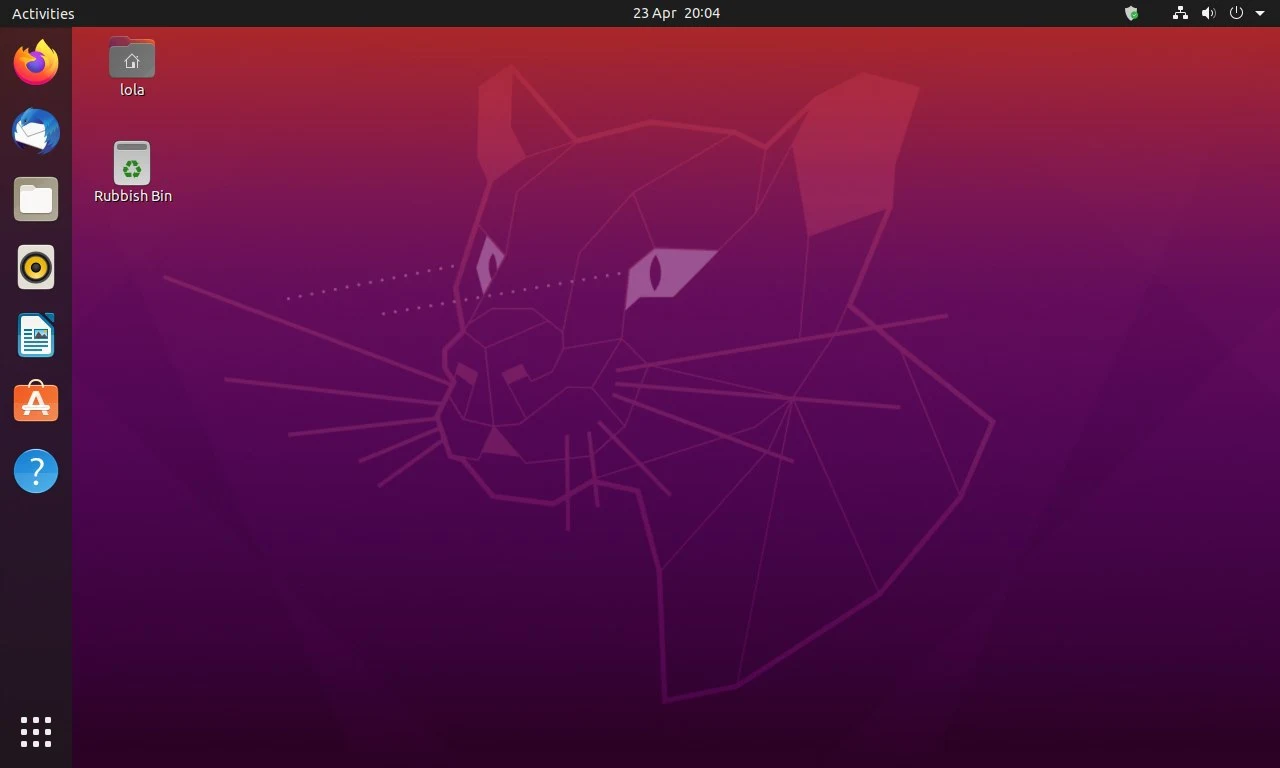
Install Ubuntu in 5 Easy steps:
Step 1: Download Ubuntu on to a working PC
Step 2: Prepare a bootable USB drive
Step 3: Change BIOS/UEFI settings on your old laptop
Step 4: Install Ubuntu
Step 5: That’s it! Done!
Why put Ubuntu on an Old Laptop?
- Lightweight (especially Lubuntu/Xubuntu)
- No bloatware or ads
- Great for web browsing, office work, media playback
- Free forever — no license fees
- Supports privacy and open-source values
Software
Office & Productivity
- LibreOffice — Full office suite (Word, Excel, PowerPoint equivalent)
- Thunderbird — Email client (great for Gmail, Outlook, IMAP)
- Evolution — Integrated email, calendar, contacts (like Outlook)
Graphics & Design
- GIMP — Photoshop alternative (powerful image editing)
- Inkscape — Vector graphics editor (like Illustrator)
- Shotwell — Simple photo manager (built-in on Ubuntu)
Multimedia
- VLC Media Player — Plays everything, no codecs needed
- Audacity — Audio editor & recorder
- Spotify — Official app (via Snap or .deb)
Internet & Communication
- Firefox — Default browser (privacy-focused, highly customizable)
- Brave — Fast, ad-blocking browser (optional)
- Thunderbird — Email (already listed, but worth repeating!)